Product videos are the most common paid job a solo creator gets asked to do. They're also the format where AI video generation is closest to actually being production-ready. No characters to keep consistent. No dialogue to lip-sync. No performance to direct. Just a product, a camera move, and light.
That simplicity is deceptive. I've now built four product videos with AI, three of them starting from a single reference image, and the lessons weren't where I expected them to be. The generation was the easy part. The reference image, the shot plan, and the editorial decisions around what the product is allowed to do — that's where the video is won or lost.
This is the complete workflow, start to finish. One reference image in. Finished product video out.
Why One Reference Image Is Enough (and Why It Isn't)
Every major model in 2026 accepts a single reference image and carries the subject's identity across generations. Runway Gen-4 can utilize visual references combined with instructions to create new images and videos using consistent styles, subjects, and locations. It maintains character and object appearance across different lighting conditions, locations, and camera angles using just one reference image. Kling 3.0's Element Library accepts a main reference image plus additional angles to build a 3D sense of identity. Luma Ray3 supports character reference images across text-to-video, image-to-video, and video-to-video modes.
So yes — one image is technically enough. But "enough to generate" and "enough to build a video from" are different bars.
The reference image is your product's identity anchor. It tells the model what the product looks like. It does not tell the model what the product does, how the camera should move, what the light should feel like, or what the shot needs to accomplish in the edit. That's your job. The image is the fact. The prompt is the direction.
The failure mode I see most often: creators upload a product photo, write "make it cinematic," and expect a commercial. What they get is a floating product with no spatial logic and no reason to exist.
Step 1: Preparing the Reference Image
This is the step that determines the ceiling of everything downstream. A weak reference produces weak generations, and no amount of re-rolling fixes it.
What makes a good product reference:
Isolate the product on a clean background. Busy compositions confuse the model about what the subject is. For product videos, choose an image where the product's shape, material, color, and key features are clearly visible. A clean hero photo almost always outperforms a cluttered lifestyle scene.
Match the aspect ratio to the output. A tightly cropped square photo cannot reveal extra background in a vertical video without the model inventing it. If you're delivering for TikTok or Reels, source or crop your reference to 9:16 before you start.
Leave room around the edges. If any part of the product approaches the frame edge — a handle, a lid, a strap — the model may cut it off or warp it during motion. Give the product breathing room in the reference image.
Remove backgrounds and watermarks if you're compositing. A workflow that used a single product photo to generate a 10-second ad involved first removing the product image background and watermark, then uploading it for scene generation.
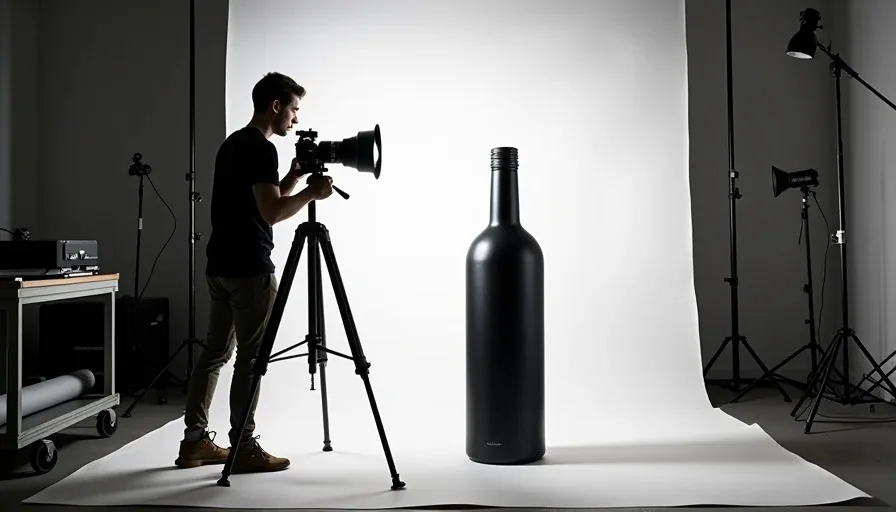
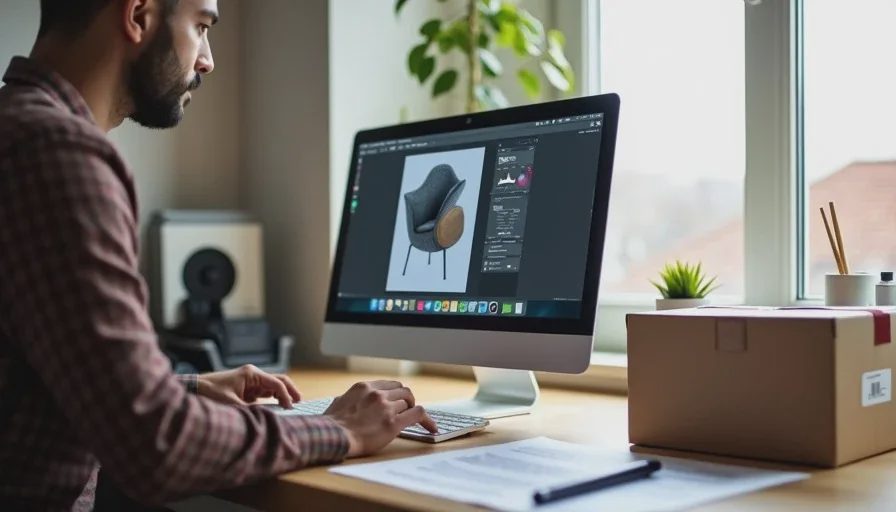
What I actually did for this project: I shot the product on a white sweep with a single softbox at 45 degrees, then removed the background in Photoshop and exported at 16:9. The reference image was a 4K PNG with the product centered and roughly 40% of the frame as negative space. That negative space became the room the camera moved through.
If you don't have a product to shoot, generate the reference. Use an image model to create a clean hero shot of the product on a neutral background, then treat that as your source. The workflow documented in one automated pipeline: analyze the product image with a vision model to extract category, materials, color palette (including HEX codes), and geometry, then use that analysis to write the video prompt.
Step 2: Deciding What the Product Is Allowed to Do
This is the creative decision that separates a product video from a product demo.
A product video has a job: make someone want the thing. The product itself doesn't need to move much. The camera moves. The light moves. The environment shifts around it. The product stays exactly where it is, in exactly the shape it is, doing exactly what it's supposed to do.
The single most important instruction in a product video prompt is a negative: what must not change.
Documented best practices are clear on this. For commercial work, image-to-video is usually more controllable than starting with text alone, because a prepared reference image gives the model a visual anchor: the exact bottle shape, packaging color, dashboard layout, or hero frame you need to keep. The input role should control product design, opening composition, important colors, and visible details. The motion prompt should control action, camera direction, pace, and atmosphere — not reinvent the product from scratch.
Here's the locked instruction block I put at the top of every prompt in this project:
PRODUCT LOCK: The product is a [describe exactly: matte black cylindrical bottle, 200ml, silver cap, label centered with brand mark]. Product shape, proportions, color, material, label position, and cap design must remain identical to the reference image. Do not add, remove, or alter any part of the product. Product remains stationary. Only camera and lighting move.
Every generation prompt started with that block. Then I added shot-specific camera direction.
The product lock does two things. It prevents the model from hallucinating extra buttons, changing the label position, or altering the material finish. And it forces me to be precise about what the product actually is — which is the same discipline a shot list imposes on a film.
Step 3: Planning the Shots Before Spending
A product video is typically 3–5 shots. That's not a budget constraint. It's a structural reality: a 15-second product video with more than five shots feels frantic, and each shot needs a reason to exist.
I plan product video shots with the same three-test logic I use for narrative work:
Can I describe what this shot does? "Establishes the product in its environment." "Shows the product's form in motion." "Reveals a detail." "Returns to the hero frame." If the shot has no job, it's not a shot.
Can I describe how it cuts with the shots around it? Product videos cut on motion and on light changes. If Shot 2 ends with the camera pushing left and Shot 3 starts with the camera pushing right, the cut fights itself. Plan the motion direction across the sequence, not just within each shot.
Can I describe it in technical terms? "Slow push-in, 35mm equivalent, product center frame, soft top light, 5 seconds." Specificity makes generation mechanical instead of experimental.
For this project, I built a four-shot product video:

Shot 1 — Hero, static. Product on a surface, camera locked. Only light moves. Establishes the product in its environment. 4 seconds.
Shot 2 — Push-in, detail. Camera slowly pushes toward the product's label. Reveals branding. 4 seconds.
Shot 3 — Orbit, form. Camera arcs around the product, revealing its three-dimensional shape. This is the shot that sells the object as a physical thing. 5 seconds.
Shot 4 — Pull-back, hero return. Camera pulls back to the opening composition. Returns to the hero frame for the end card. 3 seconds.
Total: 16 seconds. Four shots. Three camera moves. One product that never changes.
If you're working from a single product photo and want to plan more thoroughly before generating, the three-shot method from Runway's own product ad recipe is useful: write the script first, then generate one key frame per beat using the product references, then generate video from those frames. Iterate on the images, where a mistake costs an image rather than a video.
Step 4: Routing Shots to the Right Model
Not every model handles every product shot equally well. I routed each shot based on what the shot needed.
Shot 1 (hero, static) went to Kling 3.0. Static shots with subtle light movement are Kling's strength. The product lock held perfectly, and the light shift felt like a studio lighting cue rather than a generated effect. Kling's Element Library accepted the reference image as a main element, and the first generation was usable.
Shot 2 (push-in, detail) went to Runway Gen-4.5. Camera movement was the point of this shot, and Runway's camera controls let me specify the push distance and speed precisely. Runway's ability to preserve object identity across frames using a single reference image was the deciding factor — I needed the label to remain readable as the camera moved closer.
Shot 3 (orbit, form) went to Luma Ray3. Orbit shots require the model to reconstruct the product's geometry in three dimensions as the camera moves around it. Luma's spatial reasoning handled this better than Runway or Kling in my testing. Ray3's reasoning system models spatial and temporal relationships before rendering, which is why camera moves that change the viewer's position relative to the product maintain coherence.
Shot 4 (pull-back, hero return) went to Runway Gen-4.5. Simple move, but I needed the final frame to match the opening composition as closely as possible. Runway's reference-driven consistency gave me the best chance of a clean return.
What I Learned About Model Routing for Product Work
Kling for static and light-driven shots. The product lock is the most reliable, and Kling's motion realism for subtle environmental movement — light shifting, shadows changing — is the best I've tested.
Runway for camera-driven shots. When the camera move is the point of the frame, Runway's controls and first-generation fidelity reduce re-rolls. If your product video is built around a specific camera move, start here.
Luma for orbit and spatial reconstruction. Any shot where the camera changes its physical relationship to the product — orbits, cranes, arcs — Luma's spatial reasoning gives it an advantage.
Seedance 2.5 is worth noting as well: it accepts a single reference image and can generate clips up to 30 seconds with up to 50 multimodal reference inputs. For longer product sequences or multi-shot generation from one reference, it's a strong alternative.
Step 5: Generating — What Actually Happened
Here's the honest generation log for the 16-second video:
Shot | Model | Generations | Usable | Notes |
|---|---|---|---|---|
1. Hero static | Kling 3.0 | 3 | 1 | First generation had a slight label drift; third locked |
2. Push-in detail | Runway Gen-4.5 | 4 | 1 | Label text warped on two generations at the closest point |
3. Orbit | Luma Ray3 | 7 | 1 | Geometry held, but the product's back surface needed more reference info |
4. Pull-back hero | Runway Gen-4.5 | 3 | 1 | Return composition matched opening on third generation |
Total | — | 17 | 4 | 24% selection rate |
Seventeen generations for four usable shots. That's a 24% selection rate — right in line with the documented 25% average across AI production. Three to four generations per usable shot is the reality of this workflow, not a failure of prompting.
The orbit shot was the expensive one. Seven generations for one usable clip. The problem: a single reference image only shows the product from one angle. When the camera orbits, the model has to invent the product's back and sides. It guessed wrong on the first six attempts — proportions shifted, the label appeared on the back, the cap changed shape.
The fix for orbit shots: give the model more angles. If you know you need an orbit, generate or shoot additional product angles before you start. Kling's Element Library works best when each element is built from around four angles of the same subject, which gives the model a 3D sense of identity rather than a flat image to extrude.
Step 6: Post-Production
The four usable clips went into DaVinci Resolve. Product video post-production is faster than narrative work because there's less to fix — no character continuity, no eyeline matching, no performance timing. But there are three things that always need attention.
Product lock verification. I scrub through every frame of every clip and check the product against the reference image. Label position. Cap shape. Material finish. Color accuracy. This is the step most creators skip, and it's the step that catches the shot where the model subtly changed the product's proportions. A product video with an inaccurate product is worse than no product video.
Color and light continuity. Each model grades differently. Kling's default is warmer than Runway's. Luma's shadows are cooler. I matched all four clips to a single reference grade using Resolve's color match tool, then made manual adjustments. The goal is a continuous visual world, not perfect consistency.
Motion direction across cuts. The push-in (Shot 2) moves toward the product. The orbit (Shot 3) moves around it. The pull-back (Shot 4) moves away. The sequence has a rhythm: approach, explore, retreat. This was planned before generation, but it's verified in the edit. A product video that cuts from a leftward push to a rightward orbit feels wrong even if the viewer can't articulate why.
Sound. Product videos live or die on sound design. I used a low ambient bed, a subtle whoosh timed to the push-in, and a single high note on the pull-back. Music from Artlist, sound design in Resolve's Fairlight.
Export. 1080p, 24fps, H.264 for web delivery. A 9:16 vertical version for social, cropped from the 16:9 master with the product re-centered per shot.
The Cost Breakdown
Line Item | Cost |
|---|---|
Reference image prep (shoot + background removal) | ~$0 (my time) |
Kling 3.0 — Shot 1 (3 generations) | Included in $10/mo |
Runway Gen-4.5 — Shots 2 & 4 (7 generations) | Included in $15/mo |
Luma Ray3 — Shot 3 (7 generations) | Included in $10/mo |
Subscription total for the month | $35 |
Amortized cost per video (if I make 4/month) | ~$8.75 |
Post-production (Resolve, free) | $0 |
Music (Artlist, amortized) | ~$5 |
Total tool cost | ~$14 |
Fourteen dollars in tool costs for a 16-second product video. That's the number that makes clients' eyes widen. A traditional product shoot — studio, crew, lighting, editing — runs $500–$5,000 for a single product. Documented AI productions run $315–$750 per finished minute, which is already a 99%+ reduction from traditional budgets. My cost landed below that band because I'm a one-person operation with no team costs and I routed shots to the cheapest model that could handle each one.
But the real cost isn't the subscription. It's the regeneration. Seventeen generations for four shots. If I'd been paying per-generation on an API rather than working within subscription credits, that orbit shot at seven generations would have been the expensive one. At Seedance 2.5's rate of roughly 1 RMB per second of generated video, a 5-second orbit shot generated seven times costs 35 RMB — about $4.80. A 10-second product ad generated via API at $0.10 per second costs about $1 per clip.
The cheapest workflow is the one where you lock the product correctly and plan the shots before generating. The second cheapest is the one where you know which model to route each shot to. The most expensive is the one where you re-roll because you didn't do either.
What I'd Do Differently
Generate additional product angles before the orbit shot. The seven generations on Shot 3 were avoidable. Two more reference images — a side view and a back view — would have given the model enough information to reconstruct the product's geometry without guessing.
Write the shot list before opening any model. I planned the shots in my head and wrote them down after the first two generations. That's backwards. The shot list is the document that makes generation mechanical. Writing it first would have caught the orbit angle problem before I spent credits discovering it.
Test one generation at the reference image stage. Before generating any video, I should have run a single low-cost generation from the reference image and checked whether the product lock held. If the reference image isn't strong enough, no amount of video generation will fix it.
Use one model for the whole video if possible. Routing across three models gave me the best shot execution, but it multiplied the color-matching work. For the next product video, I'll pick two models — one for camera-driven shots, one for static and orbit — and route within that pair.
Frequently Asked Questions
Can you really make a product video from just one image?
Yes, technically. Every major model accepts a single reference image and carries the product's identity across generations. But "one image" refers to the reference. You still need a shot plan, a product lock instruction, and a clear idea of what each shot needs to do. The image is the fact. The direction is yours.
Which AI video tool is best for product videos?
It depends on the shot. Kling 3.0 is strongest for static, light-driven shots where the product lock must hold perfectly. Runway Gen-4.5 is strongest for camera-driven shots where the push-in or pull-back is the point of the frame. Luma Ray3 is strongest for orbit and spatial reconstruction shots where the camera changes its physical relationship to the product. Route each shot to the model whose strength matches the shot's need.
How many generations does it take to get a usable product video shot?
Expect three to four generations per usable shot. A documented 25% selection rate — 164 clips generated, 41 used — is the industry baseline. My four-shot product video took 17 generations for 4 usable clips, a 24% selection rate. Orbit shots and shots with complex camera movement require more re-rolls than static or simple push-in shots.
Why does my AI product video keep changing the product's shape or label?
Because the model doesn't have a strong enough product lock. Three fixes: (1) Write a locked instruction block at the top of every prompt specifying exactly what must not change, and repeat it verbatim. (2) Upload additional product angles — a single reference image only shows one view, and the model invents the rest. (3) Check the reference image itself; if the product is small in frame or the background is busy, the model has less information to work from.