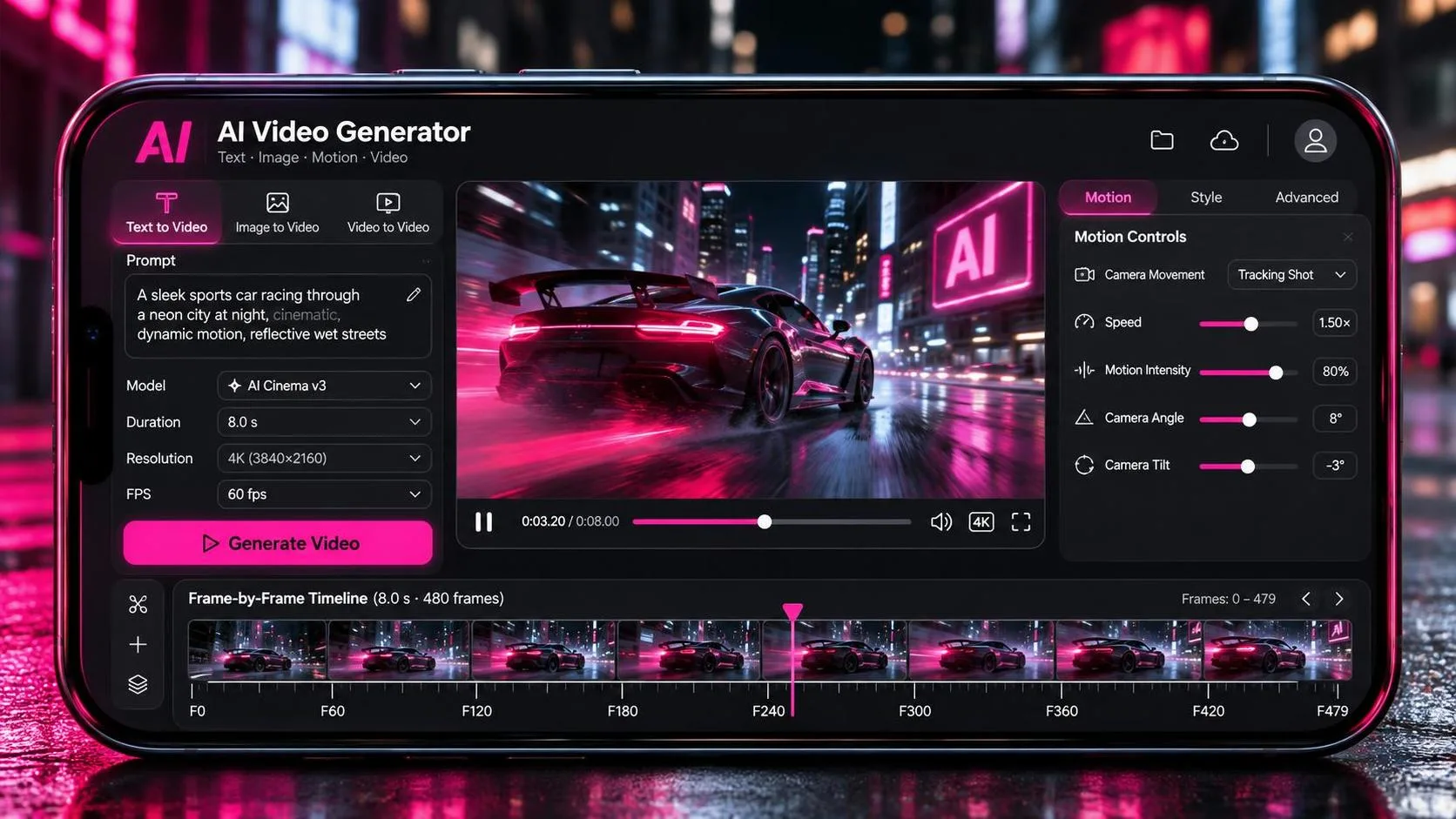
The google ai video generator conversation usually starts with a spectacular clip: a camera gliding through a neon city, a creature moving through fog, or a product floating in perfect studio light. Then the practical questions arrive. Can the tool make the same character twice? Can it hold a clean composition for more than a few seconds? Will the footage cut with anything else in the project? For independent filmmakers and creators, those questions matter more than a flashy demo.
Google’s generative video work, including models such as Veo and related creative products, is aimed at turning text or visual direction into moving images. Availability, controls, and pricing can change as products develop, so treat every test as a workflow experiment rather than a permanent promise. The useful question is not whether the model can make a beautiful shot. It is whether that shot helps you finish a video.
What the Google AI Video Generator Actually Does
A google ai video generator creates short video material from instructions, reference images, or both, depending on the product and access level. You might describe a slow push toward a weathered cabin at blue hour, upload a frame for visual guidance, and receive several generated variations. The result can be useful as a concept, transition, establishing shot, mood piece, or social-media insert.
That is different from asking for a complete film. A generator does not understand your edit in the way an experienced director does. It does not automatically know that the actor must enter from frame left because the previous shot exits on the right. It may produce attractive lighting while changing the size of a prop, the shape of a hand, or the position of a horizon. Those details become obvious when clips sit beside one another on a timeline.
Think of the tool as a fast visual assistant. It can help you explore ideas that would otherwise require a location, crew, wardrobe, practical effects, or a full 3D setup. It still needs a director to choose the strongest version and an editor to make it belong in the sequence.
Prompting for Shots That Survive the Edit
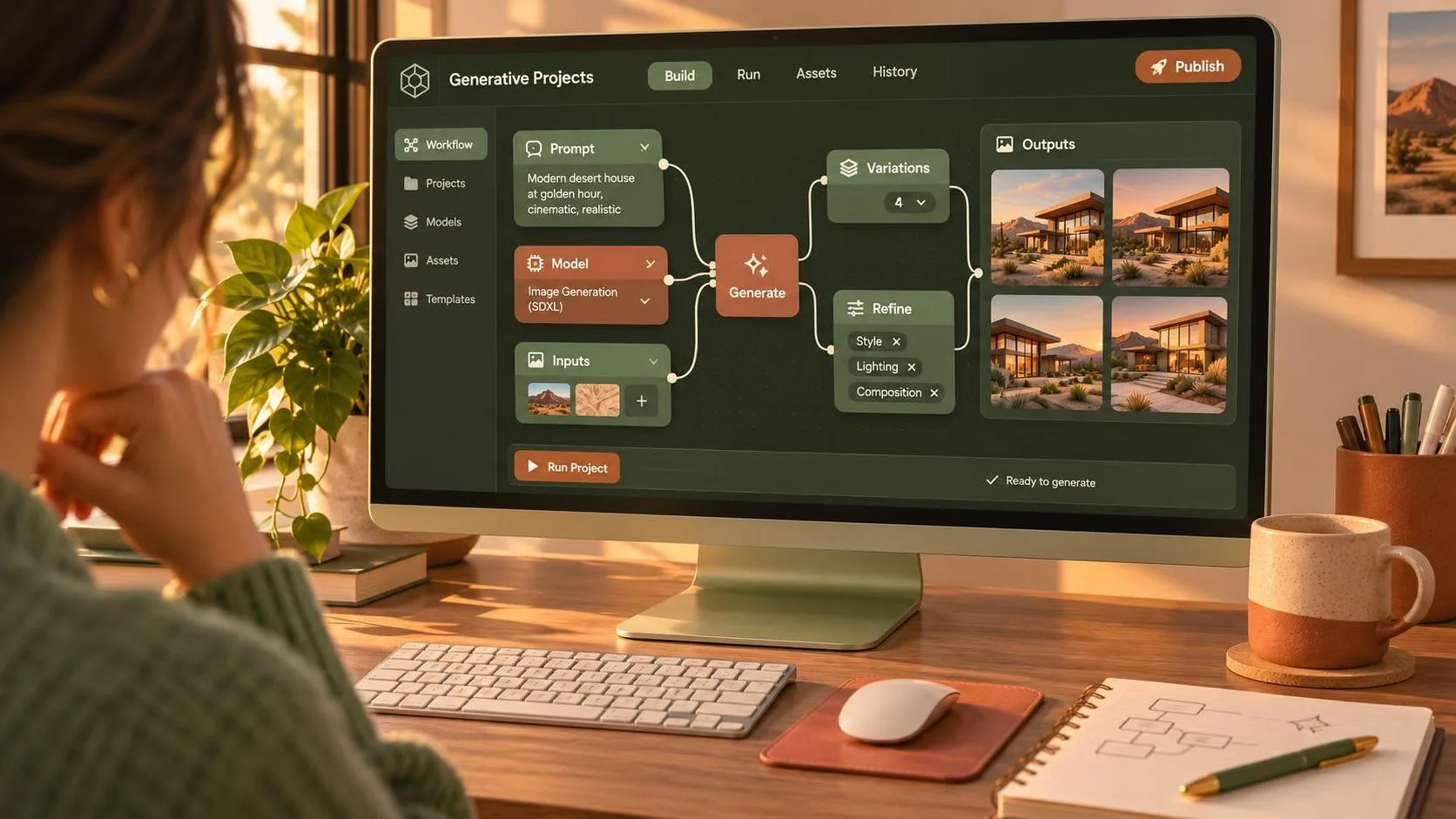
The best prompts read more like compact shot plans than piles of adjectives. Start with the subject, action, setting, framing, camera movement, lighting, and intended mood. For example: “Medium-wide shot of a cyclist crossing an empty industrial bridge at dawn, camera tracking parallel at walking speed, soft gray light, restrained documentary color, natural motion.” This gives the model a visual job instead of an abstract wish.
A google ai video generator is easier to direct when each prompt focuses on one shot. Avoid combining a crane move, a close-up, a complex transformation, three characters, changing weather, and a time jump in one request. The model has too many competing instructions. Make separate clips, then create rhythm in the edit.
Use camera language carefully. “Slow dolly in” suggests a specific movement, while “cinematic” says almost nothing. Mention a 24mm wide perspective or an intimate 85mm portrait feel when lens character matters, but remember that generated lens behavior is an approximation. Describe what the viewer should notice first. A practical prompt might specify that the reflection in a car window remains visible as the camera moves, rather than simply asking for a “beautiful cinematic car shot.”
Generate variations with purpose. Change one variable at a time: camera speed, time of day, distance from the subject, or color treatment. If everything changes between attempts, you will not know which instruction improved the result.
Continuity Is the Main Test
The demo looks good. Now let’s see if it survives the edit. Continuity is where the google ai video generator quietly hands part of the problem back to you. A solo creator may get five excellent clips, but they may show different faces, clothing, architecture, or physical scale. Even a small mismatch can break the illusion when two shots are cut together.
For a short sequence, lock down a visual bible before generating. Write the character’s clothing, age range, hairstyle, key props, location, weather, and color palette. Use the same reference image and repeat essential descriptions. If the platform offers image-to-video or reference controls, use them for shots that need a shared look. They can improve consistency, but they do not guarantee it.
Edit around the weaknesses. A two-second insert of a hand opening a door may hide identity drift. A cutaway to rain on pavement can bridge a change in background. Sound design can also sell continuity: footsteps, room tone, traffic, or a sustained musical note can connect clips that are visually imperfect. This is not cheating; it is editing. The same principle helps when mixing generated material with footage from a mirrorless camera or phone.
A Practical Creator Workflow
Start with a finished purpose, not a tool demo. For a 30-second channel intro, write the voiceover or beat sheet first. Mark the shots that truly need generation: perhaps an impossible overhead view, a stylized background, or a transition between locations. Keep simple shots practical if you can capture them quickly and honestly.
Next, create low-stakes tests. Try three prompts for the same composition and examine motion, hands, faces, text, and edges. Do not judge the clip only in a full-screen player. Pause every few frames. Look for warping, sliding feet, unstable reflections, and objects that appear without a physical reason.
With the google ai video generator, download or export the strongest material in the highest practical quality available, then organize it by shot intention rather than by generation date. Names such as “bridge_tracking_wide_v03” are more useful than “final_final_2.” Bring the clips into Premiere Pro, DaVinci Resolve, Final Cut Pro, or your preferred editor. Test them against your real soundtrack, pacing, and color pipeline.

Cost, Rights, and Production Judgment
Before building a client project around any google ai video generator, read the current product terms and commercial-use language. Access can depend on the account, region, product tier, and model. A low-cost experiment can become expensive when you need many variations, higher resolution, longer clips, or repeated attempts at one difficult shot.
Keep records of prompts, reference assets, generated files, and approval notes. If a client asks how a visual was made, you should be able to explain the process. Also inspect every element for accidental logos, readable text, recognizable likenesses, or visual details that could create clearance problems. Generative output does not remove your responsibility for the finished piece.
For a small agency, the strongest financial case is often preproduction. A generated storyboard or mood sequence can help a client approve tone before the crew arrives. For a YouTuber, it may provide a fast visual hook. For a filmmaker, it can test an idea before spending money on a location or effect. Those uses are more dependable than promising a complete production from one prompt.
When to Use It—and When to Shoot Instead
Use the google ai video generator when the shot is difficult, dangerous, expensive, highly stylized, or mainly conceptual. It is especially useful for pitch decks, title sequences, surreal inserts, visual essays, and quick explorations of production design. It can also help you discover a composition you later recreate with a real camera.
Shoot practical footage when performance, physical texture, documentary truth, or precise continuity matters. A real hand touching a real table often carries more emotional information than a flawless synthetic close-up. Practical footage also gives you dependable shadows, reflections, eyelines, and sound opportunities.
The most effective workflow is usually hybrid. Generate options, select with intention, replace weak shots, and edit the result into a coherent visual argument. A good shot is not just generated. It is chosen. If you approach the google ai video generator as an instrument rather than an automatic filmmaker, it can save time without taking judgment out of your hands.
You Also Like